Thursday, 1 January 2015

Your smartphone is changing the way your fingers work

Your smartphone is changing more than just your habits — it’s changing the way your hands work, too. Swiss researchers have discovered that activity in the brain’s cortex associated with index fingers and thumbs is enhanced directly in proportion to how often you use your phone’s touchscreen. That area of your mind will light up if you message your friends all week, but it’ll fade the longer you spend away from your device. People with basic cellphones don’t see this, according to the scientists.
smartphone-hand
This suggests that repetitive smartphone use is altering your sensory processing, and that your brain is perceiving your digits in a different way. Whether or not that’s a good thing is still up in the air, but it shows that you don’t have to be in a profession driven by hand dexterity (such as music) to see a shift in how your brain and fingers work together
Image credit: Shutterstock / nenetus | via Engadget

Battery Saving Apps For Your Android Phone

What’s the point of having a great phone with all its wonderful functions if you find yourself scraping for the last bits of power at the end of a busy calling day? A few blogs back we talked about a few tricks on how to save your phone’s battery life (you get check out that blog here). One of the options we mentioned was using one of the many available battery saving applications for Android. True, it may not bring you life-changing results, but the following apps will help you get the most juice out of your trusted phone.

Battery Doctor

battery-doctor-plus-iphone
The healing powers of this app are what makes it so popular. Just like a regular doctor, the application will exam your Android, find out what’s wrong and get down to fixing it.
Battery Doctor comes with a built-in task killer that will monitor all the processes running in the background and nip any unnecessary ones that are eating away at your battery life.
Battery Doctor also comes with desktop widgets, making the speed saving process easy and convenient and, as a bonus, will up your device.
One of the most noted features of this particular application is its ability to predict the time when your battery will give out – which is a handy function and you be able to make a better estimation on whether you should be playing that zombie game right now.

GO Battery Saver &Power Widget

GoPower Widget
Go Battery Saver and Power Widget is most known for its one-click optimization feature, which allow you to switch between pre-defined modes with one single tap. So if you want to go from stand-by mode to making a call or playing an online game – you can let the application know which battery-saving mode it should use by simply tapping a button.
Apart from one click convenience, the application will offer you lots of other functions leading to the optimization of battery use and will also provide you with suggestions as to which apps are safe to open and which ones should be closed based on remaining battery.

Juice Defender

Juice Defender
Juice Defender is an app that comes in three custom formats, depending on the level of control you are looking for: the free version, Plus ($1.99) and Ultimate ($4.99).
The free version features lots of functions: from controlling your communication data to offering a number of pre-set battery optimizing modes, just like the previous app.
If you want to go a step further – the $1.99 version will offer you a larger selection of custom and set modes, including night mode.
For ultimate control, $4.99 will buy you even more options, like the ability to switch between weekday and weekend modes, autosync and GPS management.

Tasker

Tsker
Tasker is not your typical battery saving app and comes with numerous other functions. That’s what makes it a great choice if you are looking for a comprehensive approach to managing your device. The application will handle your phone calls, text messages, media and more – and basically after setting it up, you’ll be able to put the issue out of your head completely.
In the battery saving realm, the app will manage battery consumption depending on your activity and time of day.
But as you may already know, Tasker offers so much more than that. In simple terms, it allows you to set specific tasks for your device within specific timelines – like, say, setting the silent mode from 9 to 10AM for a regular work meeting. There are lots of possibilities and options to play around with and you haven’t tried the app yet – you should definitely give it a go.

Friday, 12 December 2014

How To Use Screen Pinning On Android Lollipop 5.0 To Limit Phone Access For Guest Users

Screen Pinning

Android 5.0 Lolipop comes with a great feature that would be especially useful for those with technology-loving kids in the house.
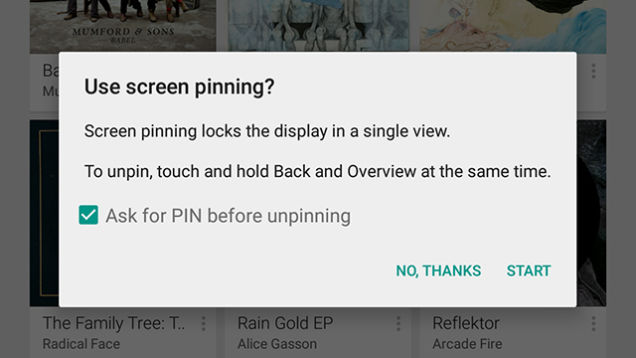
The feature is Screen Pinning and it allows you to “pin” any app, so that the guest user can not use anything by the pinned application. Let’s say your child is intently asking you to play Plants Vs. Zombies, but you are well aware that he or she may accidentally change settings, delete files or send gibberish text messages to your boss. So what you can do on Lolipop 5.0 is open up Zombies Vs. Plants and “pin it” – this way your child or any other guest won’t be able to exit the app or do anything else besides fighting digital zombies on your phone.
Sounds tempting? Here’s how you pin an app on your Android Lolipop 5.0.
First, you need to turn the Screen Pinning option on. As usual, you should head over to Settings. Then open Security and keep scrolling down until you see Screen Pinning and make sure it’s turned on.

Now, how do you go about actually pinning an app?

In order to pin an app, first it should be in your Recent Apps. More than that, it has to be the one you used last. So you will have to open the app first and then go to the Recent folder. Once you scroll to the app you should be seeing a pin icon at the bottom right. Tap on it – and you will see a pop-up screen, asking you to confirm the action. Now here comes the important part. If you are using a lock screen on your phone, then you will be able n to choose a security option for “unpinning”.
If you don’t enable the lock screen option, in order to unpin the app, the guest can simply press and hold the Back and Recents buttons.
If the lock screen option is enabled, then the guest in question will need to enter your security PIN or swipe your unlock pattern.
When using the phone in “pinned” mode, the user will only be able to access the Back key and the Share menu (which will not function). If the phone sleeps, the user can tap the power button (as usual) to awaken he device and will be brought right back to the pinned app.
If you happen to have a security lock screen enabled, it will be bypassed since the user can’t do anything else anyway.
Happy pinning!
www.electroshopworld.com

How To Extend Your Android Wear Battery Life


android-wear-battery
Just like phones, our watches these days are so much more than watches. They receive calls, track our workouts, play music, give us web access and more. It’s quite reasonable to expect all this functionality to affect your watch’s battery life. So is there anything we can do to have it all: all the exciting features plus a battery life to match?
Well, here a are a few tricks that could prolong battery life of your Android Wear.
First, let’s look at things that can actually affect your watch’s battery life. For instance, screen brightness level is one of the deciding factors, while the “always on” mode would not make that much difference (contrary to popular belief).
So here we go, and we are starting off with brightness.

How Bright Is Too Bright?

First, we have to come to terms with the fact that if you are out and about in the sun, you will have to use the maximum brightness on your watch, otherwise you will not really see anything (unless you are using E-paper display, but that’s a different story). However by turning down the brightness you can do some major battery saving – the key is finding the right balance between convenience and practicality. And when you are indoors and running low on battery, turning your brightness level to one can create some magic.

Save On The Buzz

When you get any notification on your smart watch, your wrist will buzz – that’s the beauty of the device, as it instantly and yet subtly lets you know that you have some news coming in. But if you feel like you could benefit from some quiet time, just turn off the buzz option: your screen will not light up or vibrate when there is a notification and some battery life will be saved.

The Devil Is In The Notifications

That’s where the true problem lies. Well, it’s not exactly a problem. I mean that’s why we get Android Wear in the first place – notifications conveniently keep you on track with what’s going on and disabling them would not really make that much sense, would it?
But do you really need that many? Take a long hard look at what notifications you receive daily. Someone liked your picture on Facebook, a new Twitter post or an email with the newsletter your signed up for?
All of these are eating away at your battery. So take another long hard look at your notifications and think about what you really need. After all, your phone is never really that far and your watch face can be reserved for really urgent stuff.
In the end, it’s all about balance. Go over your Android Wear settings, make a few adjustments and you’ll be able to benefit a prolonged battery life while still enjoying all the wonderful Android Wear features.
www.electroshopworld.com

Sunday, 23 November 2014

How to Prevent your Kids from Buying on your Google Play Account

Google-Play-Update
I recently wrote about the importance of having a strong and secure password but sometimes that’s not enough. If you have set your Google Play account to remember your password then anyone who gets hold of your phone could potentially rack up huge bills on your account.
There have been many headlines in the past 6 months regarding children racking up huge bills on Apple and Amazon App stores and the same could be true for your Google Play account if you don’t take care.
The usual default setting for Google Play Accounts is for the store to ask for your password the first time you use it. After that you are prompted to choose what password settings you would like and if you selected the options “to never be prompted for your password again” or for you to have a 30 minute log in period after you type the password then it’s very easy for unwanted purchases to be made.
If you’re unsure of you Google Play Settings or would like to make sure that unwanted purchases can’t be made then you can follow the simple step by step instructions below to set your account t to ask for your password “ for all purchases” and this will stop unwanted purchases from stacking up on your account.

Step By Step Guide

  1.  Open the Google Play Store app.
  2. Touch the Play Store icon > Settings.
  3. Under “User controls,” touch Require password for purchases.
  4. Choose a password setting.
    • For all purchases   ( recommended )
    • Every 30 minutes
    • Never
  5. Type your password.
Also, if you use the “Every 30 minutes” setting, you can review your password settings by selecting the Change settings link that displays after you’ve made a purchase.

www.electroshopworld.com

How To Childproof Your Smartphone

children-smartphone
When you think about childproofing your house, you consider neutralizing sharp corners, heavy objects, household chemicals and blocking unsavoury TV channels.
However, we often forget that our portable electronic devices may also host hidden dangers.
Take your smartphone, for example. In the process of exploring this fun new toy, your child may accidentally buy pricy apps or upgrades, delete things, make calls to your boss and more.
Here are a few steps you should take to be on the safe side and ensure your child has a nice friendly experience with your smartphone.

Lock Your Screen

This one comes as a no-brainer. If you leave your phone lying around unlocked, you make it easy for your child to start pressing buttons without your supervision. So, go to Settings>Screen Lock and choose a password or a key-combination to protect your screen.

Create a Separate User Profile

Later versions of Android allow you to create a special user profile for your child, allowing them to play with the device, while safely storing your data out of their reach. Tap Settings>User Profiles>Add User. Tap Set Up Now in the pop-up menu. You will then need to enter the user’s email address. It does not have to be an address your child is actually actively using, but he or she will need a personal account. Go to Google Play Store and tap the Menu button in the top right corner. Go to Account Settings>Content Filtering. You will be able to check/uncheck the following options: Everyone, Low Maturity, Medium Maturity, High Maturity, Show All Apps.
As an extra precaution, you can set up a pin code to prevent your child from changing these settings in the future. To do this, tap More About Content Filtering. You can even change the settings to prevent your child from being able to make in app purchase, you can read more details in our blog 

Lock Your Settings

There are a number of apps (like App Lock) that allow you to lock your settings (like date, sound, notifications, etc) and keep them from being accidentally changed.

Use a Childproofing App

You can find a good selection of apps for this purpose on Google Play Store, that cater to different ages.
For younger phone users, you may want to try Toddler Lock. When the app is in use, and your child starts pressing buttons, the screen will start showing colourful shapes that respond to touch and playing soothing music. In the meantime, all the hardware and functional buttons will be locked, ensuring your data’s safety.
We have just outlined a few simple precautions to protect your child from inappropriate information and your phone from unwanted modifications. Eventually though, the best childproofing method may involve sitting your child down and educating him or her about the way your phone works, outlining all the do’s and don’t.

How to Prevent your Kids from Buying on your Google Play Account

www.electroshopworld.com

5 Tech Bloggers To Follow This Year

When it comes to telling the story of tech, you will have no shortage of online information. Actually, you may be overcome by the flow of reading material spilling out on you from the screen. In order to not get lost in the sea of exciting facts and updates, you may need to shortlist your daily sources of nourishment. You probably already have a nice list of favourite tech blogs to rely on, but we could not just shy away from putting in our 2 cents.
Here’s our take on 5 tech bloggers to follow:

Michael Arrington @arrington

Michael
Named one of the most powerful people on the Internet by Wired and Forbes should not be amiss in your “to follow” list. You may know him simply as the founder of TechCrunch, a news website launched in 2005 with the focus on web startup companies, that has since become one of the most influential online blogs in the tech community.
In addition to TechCrunch, Michael Arrington has launched a personal blog – Uncrunched.com, where he writes about Internet startups, their creators, backers and investors from his personal perspective.
As Arrington put it himself: “…I’m going to write my opinion, and I’m going to write whatever the hell else I feel like in between. If people want to read what I write, yay. If they don’t, I can live with that too.”

Eric Savitz @savitz

Eric Savitz
When it comes to the business side of the technological industry, one name jumps off the list, that of Eric Savitz. The creator of Tech Trader Daily blog and the West Coast editor of Barron’s magazine, Eric Savitz is an expert in investment matters, reporting news in software, hardware and telecommunication industries. Followed and listened to by tech enthusiasts worldwide, he offers helpful insights on all sorts of money matters. Follow him on Twitter for timely updates and smart personal tips.

Kara Swisher @karaswisher

Kata Swisher
As the tech field is seeing more and more new female players, Kara Swisher is one of the veterans of the industry. She joined the Wall Street Journal in 2003 with her popular column and blog Boom Town, which appeared in the Marketplace section of the Wall Street Journal.
In 2003, Kara became the co-founder of All Things Digital, where she and her partner Walt Mossberg get to interview the leaders of the tech world. Dubbed “the number one reporter in the Valley” by Business Insider, Kara is the voice to be heard and the writer to be followed.

Adam Dachis @adachis

Adam Dachis


One of the most popular writers at Lifehacker and the author behind a number of creative solutions to tech problems, Adam is definitely someone to watch. Apart from his contributions to Lifehacker (which in itself is lots of quality reading material), Adam has a strong Twitter presence with his tech tips blog, as well as a personal website –http://www.adamdachis.com. As Adam himself describes it: This site contains samples of my work plus a list of my active projects”. And his projects are numerous: from music , videos and games to podcasts, blogs and screenplay ideas.

Dave Zatz @davezatz

Dave Zatz
Dave is the creator and writer of the cleverly named blog Zatz Not Funny. With the tagline “AllYour Digital Media Goodness”, Dave’s blog is exactly that and covers all aspects of a gadget-rich digital lifestyle and media content. Zatz Not Funny is often referred to as one of the most relevant tech blogs, following recent news and developments in the industry, products, reviews, startups and more. Additionally, Dave Zatz is a frequent contributor at The Verge, Engadget and PC Magazine.

www.electroshopworld.com