Sunday, 8 February 2015

Doogee DG800 Valencia - Low price stylish phone with good performance

Looking for a great price phone that is not overgrown, but still offers an interesting performance? Probably you may fall into Doogee DG800 Valencia. The phone offers a decent display, processing, two covers in package, smooth systém and high-quality camera. Passed the phone in our test?
package Contents
DHL shipping methods come in a plastic bag in which there is a cardboard box filled with bubble wrap. Once you wade through the entire travel package and sheathing, you see a medium-size box with the Doogee DG800 Valencia. After opening it, of course, have a phone, charger, data cable, headphones, little documentation and the second the battery cover that does not have back touch. You could say that the packaging is superior, however headphones are terrible. Their sound quality is so low that Theky are not even for the emergency listening, and so the only use we can find is a handsfree.

Appearanceand workmanship
Although the phone is a typical structure of a rectangle with slightly rounded corners, looks very elegant. On the front you wount find any logo or the highlighted speakers or buttons, only the black edges of the screen and a small silver frame lining the entire perimeter of the phone. The edges around the screen are not large, as some Chinese phones often are, but they are average-sized. Even so, the phone can still be a little smaller. Underneath are then symmetrically placed three control buttons, but it never shines in the darkness.
 
The back you can describe twice because the phone is supplied with two covers. The first is always the same, namely white with a touch panel, and a second, optional diamond-shaped fluted and available in many colors. The second battery cover does not include the touch panel. On Both covers you see Doogee sign with the slogan, LED, camera and loud speaker.

Rear covers are in the form of trays into which the telephone plant. Take off is not a problem, but that does not mean that they were on leave. The phone is structurally good. After removing them, there are three slots - two SIM cards (mini and micro) and one for the Micro SD card.
Volume buttons are on the left side, while the open / closed button is on the right. Underneath is a microphone on the top of it's headphone jack and microUSB connector.
Design of the phone is very good, both covers look very good and still have plenty of colors to choose from. The phone is beautifully thin and the only criticism we have the smooth plastics, which literally hands glide.
Structurally phone is also well treated, nobody did not creak and is tough, at least to look at. "Crash" tests of course we did not try.
Hardware and Display
In theprice range will probably Valencia is going to be at the highest level by offering Mediatek MT6582 Quad Core 1.3GHz, 1GB RAM memory and 8 GB of internal storage, expandable with a microSD card. The display has a size of 4.5 inches with IPS technology and qHD resolution (960 x 540 pixels). The rear camera offers 13 megapixel and 8 megapixel front. Phone storage is divided into internal memory, which is 3.36 gigabytes, and the phone memory offering 2.76 gigabytes This bit unfortunate division solves the SD card and also be able to determine a baseline drive for writing.
 
Connectivity phone is standard, although nowadays already lags absence NFC and LTE fast network. 3G and 2G network is then a matter of course, as well as wireless technology Wi-Fi 802.11 b / g / n. Cheers Bluetooth version 4.0. Many welcome also Dual SIM, which is typical for Chinese phones. SIM cards work in Dual standby, which means that both SIMs are active, but when you receive a call on one SIM to the other can not reach you.
The camera is at the premium price category considerably, both front and rear. But it is important to also. We can say that very well, but not without problems. More in camera.
Specifications in points - Doogee DG800 Valencia
• Display: 4.5 ", IPS, resolution 960 x 540 pixels, 245 PPI softness
• CPU: Mediatek MT6582 Quad Core 1.3GHz, Cortex A7
• GPU: ARM Mali-400
• Memory: 1GB RAM, 8GB internal + Micro SD
• Camera: 13MPx rear, front 8MPx
• GPS: Yes, A-GPS
• Wi-Fi: Yes
• Connectivity: 2G: GSM 850/900/1800/1900MHz
                             3G: WCDMA 850/2100MHz
• Bluetooth: 4.0
• NFC: no
• Battery: 2000 mAh
• Special features: USB OTG, rear touch panel
• Dimensions: 135.2 x 66.9 x 8.2 mm
• Weight: 136 g
Display
Although the IPS display technology offers a nice qHD resolution 4.5-inch screen, which does a decent softness 245 PPI. Colour rendition is decent, as well as viewing angles, but the sun even at maximum brightness will be slightly squint your eyes to read what you need. For the display, we have little to complain about his reaction. It is often necessary to repeat clicks, as well as scrolling or zooming using multitouch. Doogee DG800 can handle only two fingers on the screen at once, which we consider nearly enough.
Performance tests (benchmarks)
Phone were subjected to two basic benchmark tests to verify the performance of the paper. As always, the results are approximate. Our test Valencia did not fare badly at all. See for yourself.
 

gaming performance
Numbers of raw performance testing has shown that in-class phone is a predator, and it also confirmed at the gaming test, in which we tried two very demanding titles.
Real Racing 3
The third part of the famous racing series Real Racing did not make any problems to the phone and even in dusty corners, where 2x more powerful phones sometimes have problems, we did not noticed reduced FPS.

GTA: San Andreas
In this game it is possible to set the quality of video output. That we automatically set to HIGH and the game ran beautifully so smoothly. We could, of course, and we tried to set on MAX in this case, we also noticed some glitches and it means that Valencia do not be afraid to venture into almost any game on Google Play.

connectivity
Wi-Fi, Bluetooth and data networks
With Wi-Fi during use, there were no problems and the strength of the signal we would describe as average, not the worst or the best, so you will not be disappointed or surprised.
Smart watches and other additional equipment we had no the opportunity to try, but the regular transfer files between devices run without problems.
Data network the phone and had no trouble switching between faster and slower networks, the question of a second.
USB OTG
The presence of USB OTG is better for Chinese phones already rule and thus there is also in our model. So thanks to a special reduction, which unfortunately is not included, you can view the contents of your USB flash drive or hard drive, or you can connect a keyboard or mouse.
GPS
With GPS it is for Chinese phones tricky, even for the better. At the moment we have three Doogee phones, two of which are currently Valencia. In two phones  Navigation runs flawlessly and fixes possiton a few seconds, however, in just the test in Valencia we first fetch it took over an hour now and always struck fixation position for over a minute, which is quite a lot. It's better than other models, mostly those with older MTK processors, there may not navigation work at all. The solution faster fixation may be different applications, but they need to work ROOT. We can say that in most cases the navigation should not be a problem, since the search for information and exploring foreign reviews, we found that Doogee DG800 are navigation issues minimal.
Battery Pack & Life
Phone battery has a capacity of 2000 mAh, which is nowadays the average value and the word mean we can characterize an entire chapter and battery life. Doogee DG800 Valencia is in the intensive use of traditional phone one day and you'll have to use stronger even in one day at the end to save or find a drawer. But if only a few times during the day you call, send an SMS, the internet, read the message and you will find buses, so no problem getting on for two days.
Phone We also subjected to the test web browsing. Retrieving page Světandroida.cz we set every 15 seconds. Phone ran dimmed connected to Wi-Fi and of course the ever-lit display. The battery has run out for 3 hours and 14 minutes, which is average to slightly below average result.
 
user Interface
Android 4.4.2 please
Brand Doogee already gives to their newer phones latest version of Android 4.4.2 KitKat, which is definitely praise and another pleasant surprise is that Doogee with their old phones and updates take place even through OTA update. Immediately after turning on the phone correcting us one update added. Doogee DG800 Valencia offers mostly clean and fast Android, which is only slightly modified graphically, and I mean especially icons.

The speed and stability of the environment
Reactions phone are brisk and we were very satisfied, even during boot animations we noticed almost no jams. During our testing system once or falling.

software equipment
Recognition of drawing commands
On your phone, you can set the recognition of gestures in the drawing box. Then you while constantly displayed on the wheel, which you drawing box causes. Wheel you can put anywhere on the screen and then remain there. The application can then set what gestures to launch specific applications. It is a simple and functional way, but set more complex gestures means that you may get to him exactly imitate, so it's better to stick with wheels, ripples or sign for infinity.
 
The rear touch panel - Touch Back
Back Touch is one of the most interesting features of the phone and also very unusual novelty, because it almost will not find on other phones. The rear panel can be used for sliding over surfaces in maps, gallery, settings, and the web browser. This means almost everywhere. Furthermore, he can set up to run any application on double tap. Basically, you have to double tap, the camera, so anytime when running the screen at any time, you can immediately move into the camera. In it further back panel you use then - when pressing and holding the switch between the front and rear camera and when pressed take the picture. Photographing the rear panel is particularly useful to photograph the front of the camera. Back Touch works well, is accurate and has a fast response. However, its use in practice is not very practical. It is positioned so that your Fišer is always on it. This may sound great, but if you do not want to use the panel and you can have it on, so you will inadvertently affect the operation of the phone, you will constantly driven into the camera and take pictures of unwanted images. Of course if you do not use the back panel, so he simply turned off and will not bother you.
Contacts, phone and keyboard
Application caring for managing contacts and dialing is a classic like a pure Android and there is nothing to criticize, rather the opposite. Dialer supports T9, so it is convenient search contacts.
The keyboard also comes from a pure Android, so it is nothing to write home about and maybe you'll be better off with an alternative to Google Play. It surprised a message box that appears on the screen after unlocking the phone, unless of course you have some incoming SMS. If it's useful or annoying feature is up to you, but we did not mind.
Camera and video
On paper this phone is great - front offers superior 8 megapixel, back then 13MPx. Of course, auto focus, Full HD video recording and LED flash. How is the quality? It is the reasonably priced great, but a few ills we came.
applications camera
The environment the camera is hilarious, and generally you would it not be missing anything. You can capture images in many modes including panorama, HDR, live photos (something like gif) or in the beauty of the face. Telephone blade automatically, but can he dopomoct click on the display to the focus on a specific object. The application is not necessary to describe them, because if you did not comply, thanks to the Android version KitKat, you can download the official Google camera, which can be found for example in the Nexus.


resume
Our feelings after testing the phone are mixed. On the one hand you get the perfect device for actual folk money, and if you're not afraid to order from China, so much cheaper. On the other side of the phone has a few things that disappointed us. These little things mean problems with GPS, multitouch support only two fingers in murky conditions when shooting ou can see a gray stain in the bottom left corner. If you think that you will not be bothered by these things, or assigning them to a sort of compromise price, so do not hesitate. The phone is Android offers nimble with a decent camera performance and compact dimensions. Furthermore, we offer a lot of interesting cool features like rear touch panel, proximity control and the recognition of drawn gestures. The phone will be enough for the vast majority of games that you play fluently in addition, of course, will not disappoint even when surfing the internet or working with files.
Due to the two housings supplied in the basic package, smaller size, perfect front camera "selfies" and attractive appearance would phone is also recommended for women.
Pros
+ Price / performance ratio
+ Agile system
+ DualSIM
+ Slot for MicroSD card
+ Ability to install on SD card
+ Decent camera, especially the front
+ Function USB OTG
+ Innovative elements (rear touch panel, proximity control, recognition of gestures drawn)
+ Official OTA updates from the manufacturer
cons
- Average, or below average battery life per charge
- Long retrieves the GPS
- Grey spot for photos in low light conditions
- Multitouch supports only two fingers
- Very bad headphones in the package
- Not very good quality audio output (headphone)

www.electroshopworld.com

Friday, 16 January 2015

How To Print From Your Android Phone

Printing
True, the world is moving away from paper printing, as we have more and more portable devices. And in many ways, your Android phone is a perfect replacement for a printer, as you can store and take your documents anywhere you want.
However, it may take another century or so to get rid of red tape completely, and from time to time, as much as we may despise the idea – we will have to print.
But enough with the drama. If you feel like printing from your Android phone, here’s how you do it.
First, you’ll need to get connected to Google Cloud Print, a service that allows you to print over the web from any device, be it your Android phone or tablet. To start with,  let’s tend to your printer. Connect it to your computer and activate Cloud Print support in Chrome – this way you will be syncing your printer with your Google account.
Next, move on to your phone and install Google Cloud Print app.
Now let’s go through the printing process step by step. Select a document you want to bring onto paper, tap the Share button and select Cloud Print app to share the document with. Then you should be able to see your printer and get down to the process. Do note that you will need to be using the same Google account on your phone and printer.
Using a cloud service for printing is quite convenient as you will be able to send documents to your home or office printer from anywhere and even share your printer with others, so that they can do the same – great way to save time (and spend fewer hours at the office).
But printing does not necessarily mean paper. I often us the print feature on my laptop to convert a document into PDF. However, and quite unfortunately, our phones do not have a Print button – and thus – no Print To PDF function.
But not all is lost. You can follow pretty much the same steps with a Share button, but you will need to pre-install an app that can convert your files to PDFs.
One way to do that (and if you want to quickly PDF a web page) is to use the ever-handy Cloud Print app that you have already installed. Another great feature of the app, is that once you enable it, your Google Chrome browser (if you do not have one on your phone, you will need to install it) will also have printing functions. So all you’ll have to do is open up a web page in the browser, select Print – and the page will be saved as PDF onto your phone’s Downloads folder, probably under the name “ChromeSnapshots”.
Another way to PDF things is to use the Share button. Share the document with Cloud Print app and save the file to Google Drive. It will then appear in your Google Drive storage as a PDF document – ready for you to access and use anytime you want.
If you are looking to convert more different formats into PDF, you can also look into downloading a specialized app, like Word To PDF for Android. The application handles .doc, .docx, .odt, .ott and .rtf and will do the job quickly with a simple click.
So here it is! Printing has never been so easy – no additional cable mess, driver installation or any fuss of that kind. But as easy as printing has become – do take a minute before tapping “Print” and think if you could just go digital and save a few trees.

Make Your Life Easier With The Best Android Widgets Of 2014

Among the many things we love about Android, its fun and functional widgets are somewhere at the top of the list. Changing the look of your phone, adding a few personalized features, upgrading your weather or time-telling – all that and so much more is within the small widget’s power. I have come to think about widgets as helpful fairytale elves, that can get all the tasks accomplished and you won’t even know they were there.
But let’s move back to the real world. With widgets being so dearly loved by Android users, it’s not surprising that we are now able to choose among a great variety of them. So which ones should make it onto your phone?
Below are a few must-have widgets of 2014 that we think would add style and functionality to your device.

Slider Widget – Volume

Slider Widget
You may have had this problem. You turn down the volume on your phone by pressing the volume button on the side and think that from now on everything you do will be under the veil of silence. So you open that farm game you’ve been too ashamed to admit you are addicted to and hear it blaring the “Old Macdonald Had a Farm” all over the boardroom.
This is all because different applications and features on Android have different volume settings and you can’t control all of them at once by just pressing the volume button.
With Slider Widget you will know exactly what kind of volume you are adjusting and brings the helpful icons right onto your home screen for quick and easy access.

Shazam

Shazam
You have probably heard about Shazam and heard good things too. In case you haven’t, the app allows you to know which song is playing or which TV show is on by just “listing” to it. So the next time you hear a nice song in the mall, you won’t have to try to remember the lyrics and then roam the Internet in search of the song. All you have to do is let Shazam “listen” to it and the app will tell you the name of the song and the artist, so that you can easily download it for your collection.

Cal

Any Do Cal
There are so many calendar apps to choose from these days that it’s getting harder and harder to pinpoint the one that would be at the top of everyone’s list. After all, we are all have our own set of criteria when it comes to organization. However, Cal seems to give its users the ultimate selection of calendar features without making it overwhelming and piling on too many functions. Cal does a great job of letting you know what’s on the agenda for today, while featuring a number of customization options to fit any theme.

Directions

directions widget
Directions is a very useful app that will help you get to your favourite (or simply frequently visited) locations. It comes as part of Google Maps and may actually be already pre-installed on your phone. What does it do? It helps you make a list of places that you visit often, like, for example, “office”, “home”, “sandwich place”, which will then appear as icons on your home screen. Now, whenever you need toge to one of those locations, all you have to do is tap the necessary icon and specify whether you will be driving, walking, biking or taking public transport– and the app will quickly pull up the directions. Directions makes your daily navigation more convenient and simple.

Google Keep

Google Keep_1
Last, but by no means least, comes Google Keep – an application that combines note taking, reminders, lists with audio and image features. The application is a great way to quickly jot down reminders on the go and make sure you don’t forget to get that packet if milk. And when you have one of those million-dollar ideas you can simply record your thoughts to come back to them later.

Thursday, 1 January 2015

Your smartphone is changing the way your fingers work

Your smartphone is changing more than just your habits — it’s changing the way your hands work, too. Swiss researchers have discovered that activity in the brain’s cortex associated with index fingers and thumbs is enhanced directly in proportion to how often you use your phone’s touchscreen. That area of your mind will light up if you message your friends all week, but it’ll fade the longer you spend away from your device. People with basic cellphones don’t see this, according to the scientists.
smartphone-hand
This suggests that repetitive smartphone use is altering your sensory processing, and that your brain is perceiving your digits in a different way. Whether or not that’s a good thing is still up in the air, but it shows that you don’t have to be in a profession driven by hand dexterity (such as music) to see a shift in how your brain and fingers work together
Image credit: Shutterstock / nenetus | via Engadget

Battery Saving Apps For Your Android Phone

What’s the point of having a great phone with all its wonderful functions if you find yourself scraping for the last bits of power at the end of a busy calling day? A few blogs back we talked about a few tricks on how to save your phone’s battery life (you get check out that blog here). One of the options we mentioned was using one of the many available battery saving applications for Android. True, it may not bring you life-changing results, but the following apps will help you get the most juice out of your trusted phone.

Battery Doctor

battery-doctor-plus-iphone
The healing powers of this app are what makes it so popular. Just like a regular doctor, the application will exam your Android, find out what’s wrong and get down to fixing it.
Battery Doctor comes with a built-in task killer that will monitor all the processes running in the background and nip any unnecessary ones that are eating away at your battery life.
Battery Doctor also comes with desktop widgets, making the speed saving process easy and convenient and, as a bonus, will up your device.
One of the most noted features of this particular application is its ability to predict the time when your battery will give out – which is a handy function and you be able to make a better estimation on whether you should be playing that zombie game right now.

GO Battery Saver &Power Widget

GoPower Widget
Go Battery Saver and Power Widget is most known for its one-click optimization feature, which allow you to switch between pre-defined modes with one single tap. So if you want to go from stand-by mode to making a call or playing an online game – you can let the application know which battery-saving mode it should use by simply tapping a button.
Apart from one click convenience, the application will offer you lots of other functions leading to the optimization of battery use and will also provide you with suggestions as to which apps are safe to open and which ones should be closed based on remaining battery.

Juice Defender

Juice Defender
Juice Defender is an app that comes in three custom formats, depending on the level of control you are looking for: the free version, Plus ($1.99) and Ultimate ($4.99).
The free version features lots of functions: from controlling your communication data to offering a number of pre-set battery optimizing modes, just like the previous app.
If you want to go a step further – the $1.99 version will offer you a larger selection of custom and set modes, including night mode.
For ultimate control, $4.99 will buy you even more options, like the ability to switch between weekday and weekend modes, autosync and GPS management.

Tasker

Tsker
Tasker is not your typical battery saving app and comes with numerous other functions. That’s what makes it a great choice if you are looking for a comprehensive approach to managing your device. The application will handle your phone calls, text messages, media and more – and basically after setting it up, you’ll be able to put the issue out of your head completely.
In the battery saving realm, the app will manage battery consumption depending on your activity and time of day.
But as you may already know, Tasker offers so much more than that. In simple terms, it allows you to set specific tasks for your device within specific timelines – like, say, setting the silent mode from 9 to 10AM for a regular work meeting. There are lots of possibilities and options to play around with and you haven’t tried the app yet – you should definitely give it a go.

Friday, 12 December 2014

How To Use Screen Pinning On Android Lollipop 5.0 To Limit Phone Access For Guest Users

Screen Pinning

Android 5.0 Lolipop comes with a great feature that would be especially useful for those with technology-loving kids in the house.
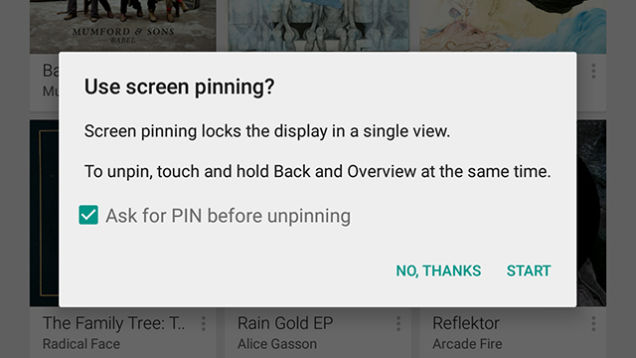
The feature is Screen Pinning and it allows you to “pin” any app, so that the guest user can not use anything by the pinned application. Let’s say your child is intently asking you to play Plants Vs. Zombies, but you are well aware that he or she may accidentally change settings, delete files or send gibberish text messages to your boss. So what you can do on Lolipop 5.0 is open up Zombies Vs. Plants and “pin it” – this way your child or any other guest won’t be able to exit the app or do anything else besides fighting digital zombies on your phone.
Sounds tempting? Here’s how you pin an app on your Android Lolipop 5.0.
First, you need to turn the Screen Pinning option on. As usual, you should head over to Settings. Then open Security and keep scrolling down until you see Screen Pinning and make sure it’s turned on.

Now, how do you go about actually pinning an app?

In order to pin an app, first it should be in your Recent Apps. More than that, it has to be the one you used last. So you will have to open the app first and then go to the Recent folder. Once you scroll to the app you should be seeing a pin icon at the bottom right. Tap on it – and you will see a pop-up screen, asking you to confirm the action. Now here comes the important part. If you are using a lock screen on your phone, then you will be able n to choose a security option for “unpinning”.
If you don’t enable the lock screen option, in order to unpin the app, the guest can simply press and hold the Back and Recents buttons.
If the lock screen option is enabled, then the guest in question will need to enter your security PIN or swipe your unlock pattern.
When using the phone in “pinned” mode, the user will only be able to access the Back key and the Share menu (which will not function). If the phone sleeps, the user can tap the power button (as usual) to awaken he device and will be brought right back to the pinned app.
If you happen to have a security lock screen enabled, it will be bypassed since the user can’t do anything else anyway.
Happy pinning!
www.electroshopworld.com

How To Extend Your Android Wear Battery Life


android-wear-battery
Just like phones, our watches these days are so much more than watches. They receive calls, track our workouts, play music, give us web access and more. It’s quite reasonable to expect all this functionality to affect your watch’s battery life. So is there anything we can do to have it all: all the exciting features plus a battery life to match?
Well, here a are a few tricks that could prolong battery life of your Android Wear.
First, let’s look at things that can actually affect your watch’s battery life. For instance, screen brightness level is one of the deciding factors, while the “always on” mode would not make that much difference (contrary to popular belief).
So here we go, and we are starting off with brightness.

How Bright Is Too Bright?

First, we have to come to terms with the fact that if you are out and about in the sun, you will have to use the maximum brightness on your watch, otherwise you will not really see anything (unless you are using E-paper display, but that’s a different story). However by turning down the brightness you can do some major battery saving – the key is finding the right balance between convenience and practicality. And when you are indoors and running low on battery, turning your brightness level to one can create some magic.

Save On The Buzz

When you get any notification on your smart watch, your wrist will buzz – that’s the beauty of the device, as it instantly and yet subtly lets you know that you have some news coming in. But if you feel like you could benefit from some quiet time, just turn off the buzz option: your screen will not light up or vibrate when there is a notification and some battery life will be saved.

The Devil Is In The Notifications

That’s where the true problem lies. Well, it’s not exactly a problem. I mean that’s why we get Android Wear in the first place – notifications conveniently keep you on track with what’s going on and disabling them would not really make that much sense, would it?
But do you really need that many? Take a long hard look at what notifications you receive daily. Someone liked your picture on Facebook, a new Twitter post or an email with the newsletter your signed up for?
All of these are eating away at your battery. So take another long hard look at your notifications and think about what you really need. After all, your phone is never really that far and your watch face can be reserved for really urgent stuff.
In the end, it’s all about balance. Go over your Android Wear settings, make a few adjustments and you’ll be able to benefit a prolonged battery life while still enjoying all the wonderful Android Wear features.
www.electroshopworld.com